This manual explains how to run your contribution pool and loans in your workspace: adding contributors and clients, recording contributions, lending, collecting repayments, and keeping the books. It is written for everyone who signs in to a workspace: Administrators, Managers, Loan officers and Auditors.
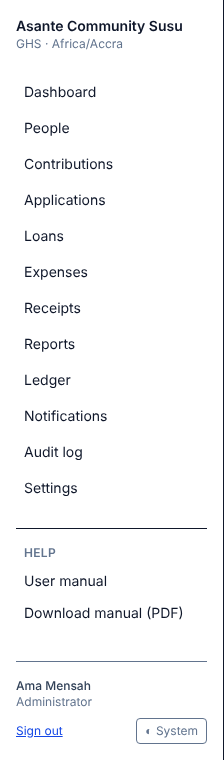
Tip: The latest version of this manual is always online. Open it from Help → User manual in the menu on the left of every page, or download it as a PDF with Help → Download manual (PDF).
Contributors pay money into a common pool. Contributions fund the pool only: contributors earn no interest or share of profit, and there are no withdrawals.
Clients borrow from the pool at a monthly interest rate. The interest flows back into the pool and is lent out again.
A person can be both a contributor and a client. Contributors usually borrow at a lower rate.
Interest is simple and monthly: every month (a period) the full month's interest is due, even if the loan is repaid early.
When a client pays a month's interest but not the principal, the loan can roll over into a new month at the same rate and principal.
All amounts are in Ghana cedis (GH₵) and all dates follow Ghana time (Africa/Accra).
A new group requests its workspace from the website's Start free trial button (the Request a workspace page):
Enter your organisation's name and choose its workspace address (for example adom-susu). This becomes the address your team signs in at.
Enter your name, email, an optional phone number and a password. You become the workspace's first Administrator.
Optionally pick the plan you are interested in, then select Request my workspace. Requesting a workspace means you agree to the website's Terms of Service and Privacy Policy, linked under the button.
The request is reviewed before the workspace opens. When it is approved you get a welcome email with the workspace address; sign in with the email and password you chose. Your free trial starts on the day of approval (see Billing).
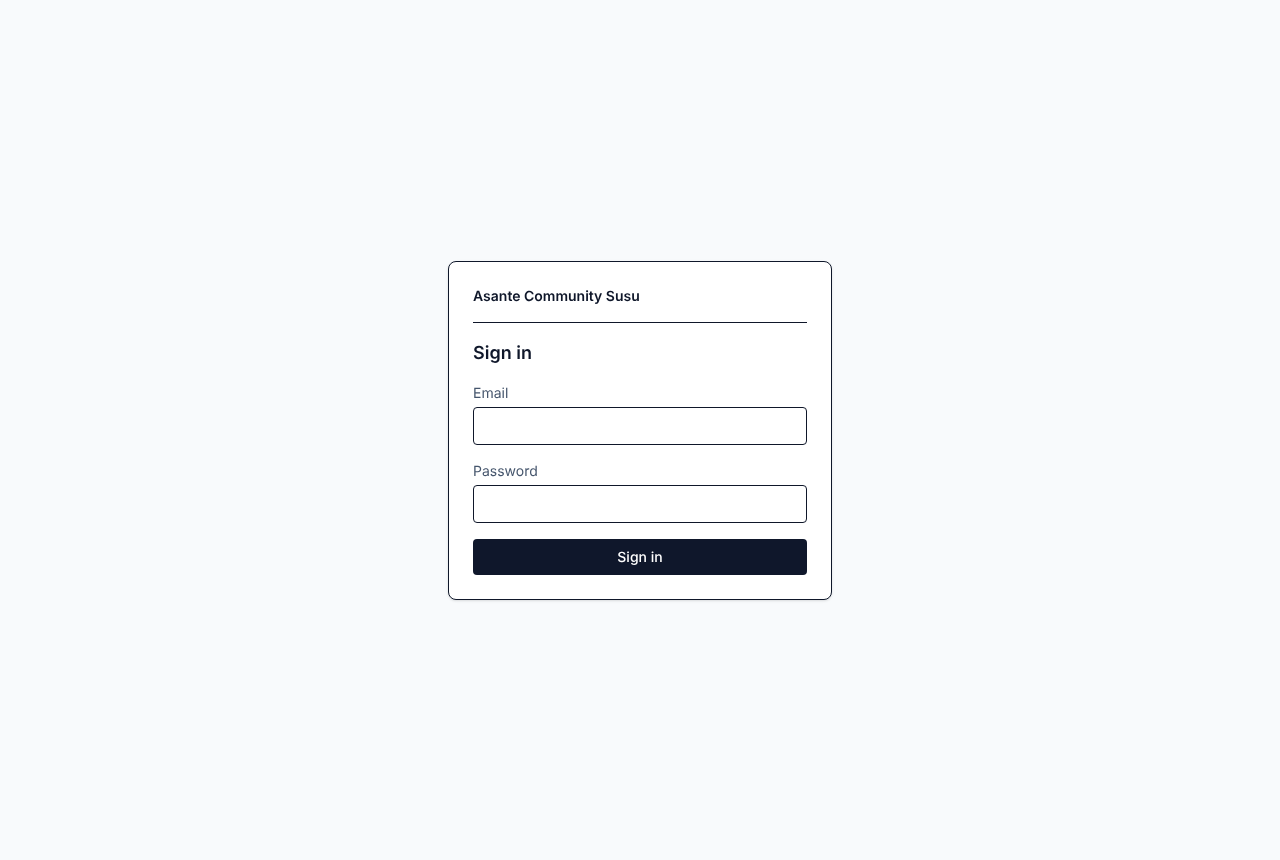
Your workspace has its own web address, for example https://your-group.example.com. Your Administrator gives you that address, your email and a first password.
Open the workspace address in your browser.
Enter your email and password.
Select Sign in.
The sign-in page
If you forget your password, ask an Administrator of your workspace to set a new one for you (see Users and roles).
Note: If the sign-in page says This workspace is read-only, you can still sign in and look at everything, but changes are switched off. See Read-only workspaces.
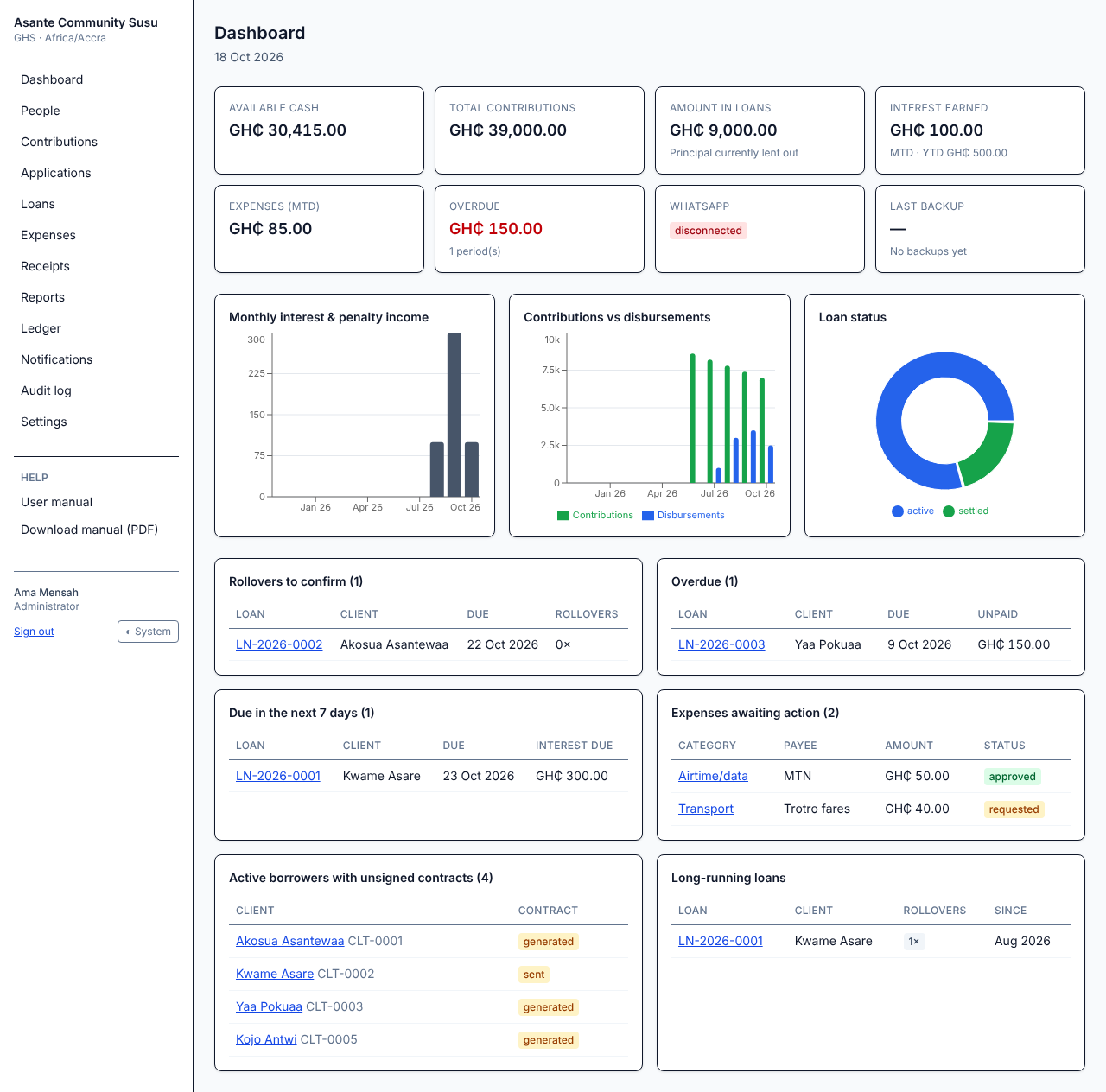
Each list links to the loan, person or expense it is about.
Rollovers to confirm: loans whose month's interest is paid and that wait for a Manager to confirm a rollover or ask for settlement. A red decision past due label means the due date has already passed. See Rollovers.
Overdue: months whose due date has passed without full payment. See Overdue loans.
Due in the next 7 days: interest that falls due this week, so you can remind clients.
Expenses awaiting action: expenses to approve or pay. See Expenses.
Active borrowers with unsigned contracts: clients with a loan whose master contract has not been signed and uploaded. See Contracts.
Long-running loans: loans that have rolled over the most times.
Partial payments to review: appears when a client paid only part of a month's interest.
Tip: Managers and Administrators also receive a daily digest by email or WhatsApp with what is due today, what is overdue, what was collected yesterday and the rollovers waiting for a decision. It is not sent on days when there is nothing to report.
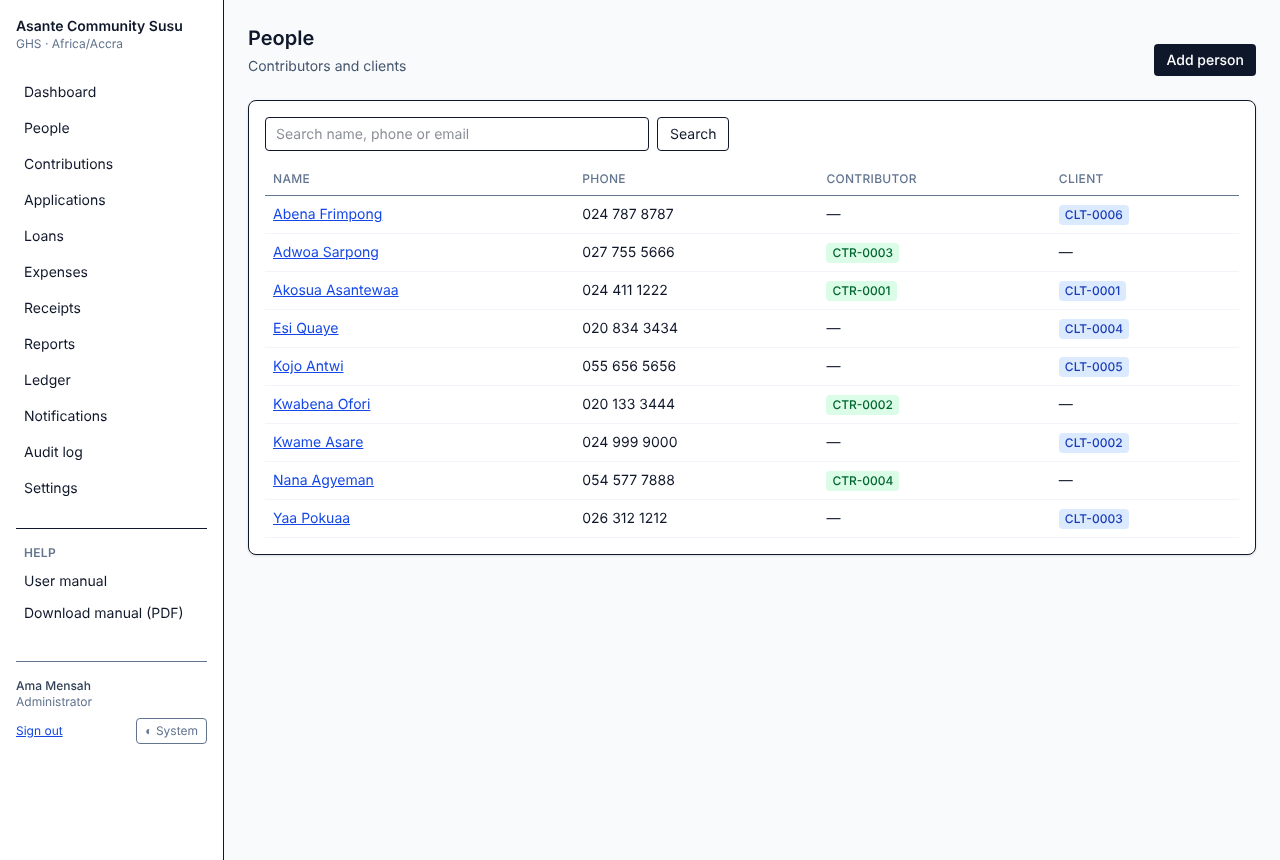
People holds everyone the pool deals with. A person can have a contributor profile (code CTR-0001), a client (borrower) profile (code CLT-0001), or both.
The People list
Search by name, phone or email with the box above the list. The Contributor and Client columns show each person's codes; a grey contributor code means the contributor is inactive.
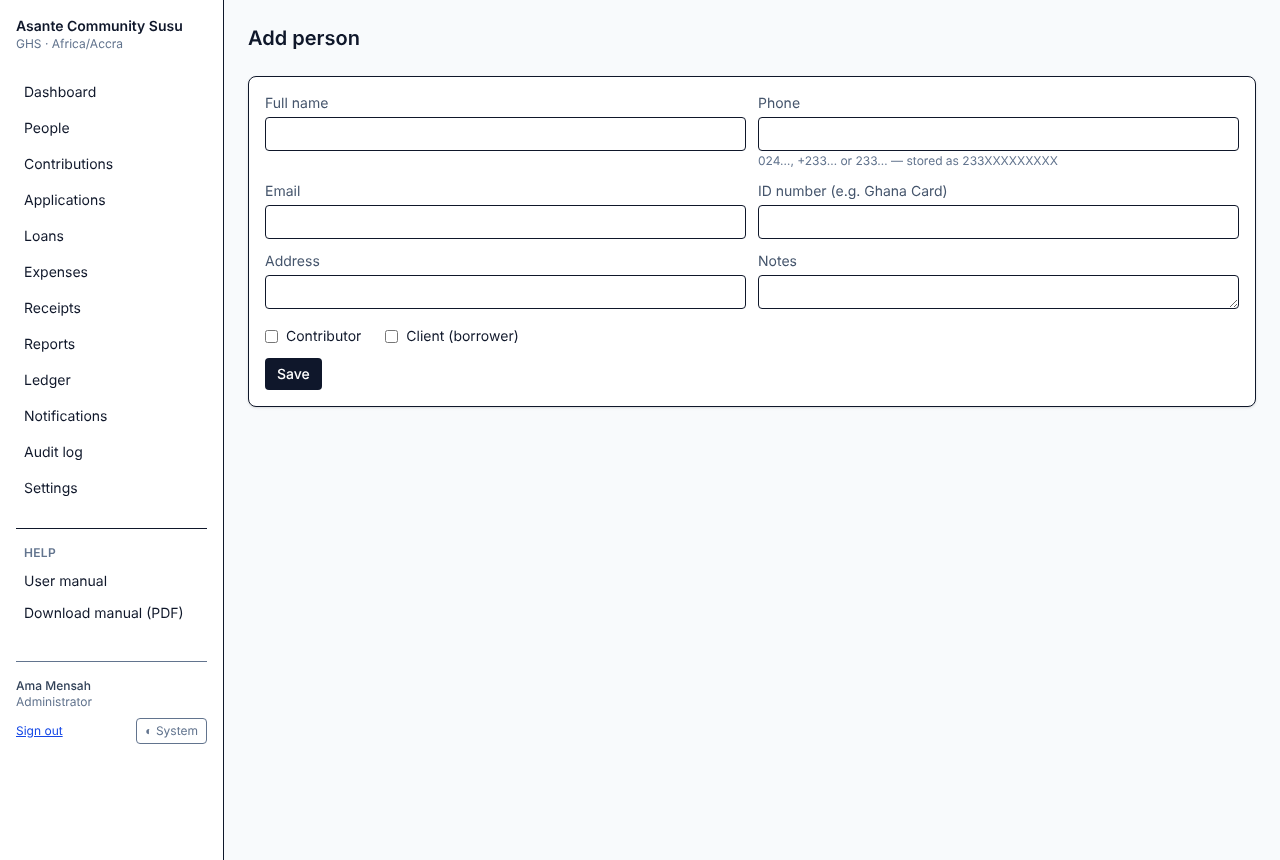
Enter the full name. Phone, email, ID number (for example a Ghana Card), address and notes are optional, but a phone number or email is needed to send the person receipts and reminders.
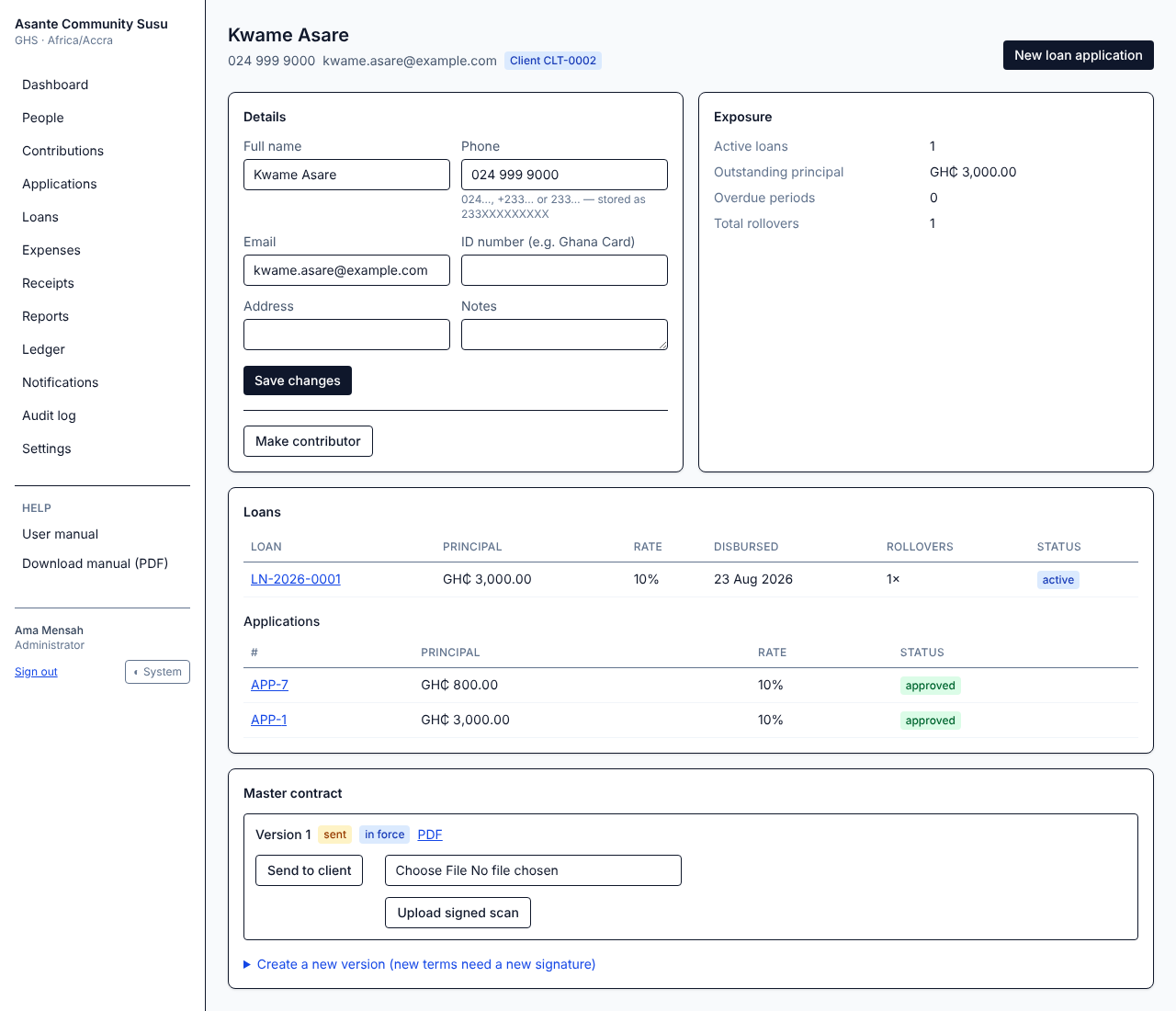
Each client has one master contract. You can generate it as soon as the client is added, so they can sign it before you lend; otherwise it is generated automatically at their first disbursement. Every loan refers to the version in force when it was disbursed. Each loan also gets its own loan schedule (see The loan schedule).
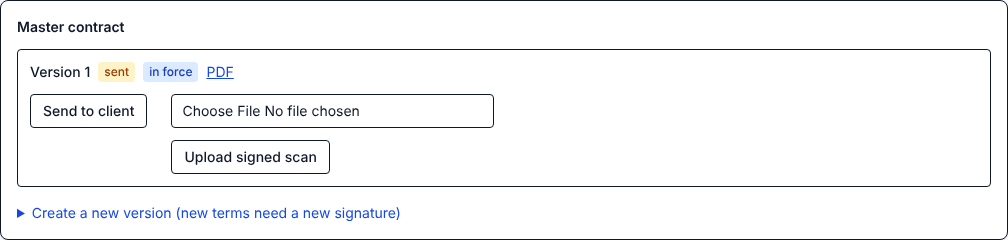
A client's master contract
A contract version moves through these statuses:
Status
Meaning
generated
Created; not yet sent to the client
sent
Sent to the client to sign
signed_uploaded
A signed scan has been uploaded
legacy_pending_upload
Brought over from the old records; the signed copy still needs uploading
To manage a contract (Managers and Administrators):
For a new client with no contract yet, select Generate master contract. Version 1 is created with the standard terms, and the client's first loan uses it.
Select PDF to open or print the contract.
Select Send to client to email or WhatsApp it to the client. Its status becomes sent.
When the client has signed, scan or photograph it, choose the file (PDF or image) and select Upload signed scan. The scan appears as Signed scan.
To change the terms, open Create a new version, edit the text and select Create version. A new version needs a new signature.
Note: A signature is not required before a loan is disbursed (though you can get one first by generating and sending the contract early), but the disbursement page warns you, and the client stays on the dashboard's unsigned contracts list until a signed scan is uploaded.
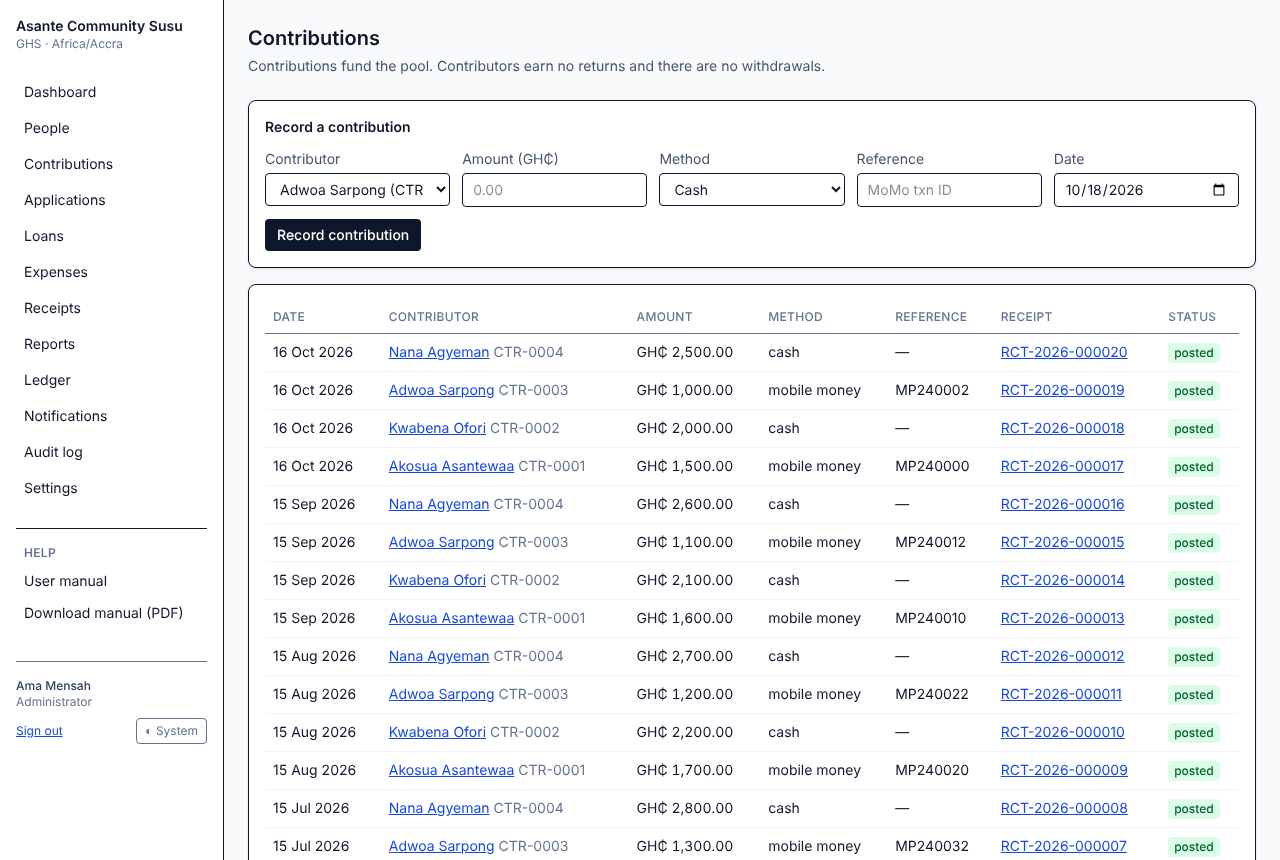
Contributions are money contributors pay into the pool. Each one issues a receipt, increases available cash, and is sent to the contributor as a receipt by WhatsApp or email.
Recorded contributions are never edited or deleted, so the books always agree with the receipts. If a contribution was recorded wrongly, a Manager or Administrator voids its receipt (which reverses the contribution) and you record it again correctly.
Only active contributors can be chosen. To record for a contributor who has been deactivated, reactivate them first on their page under People.
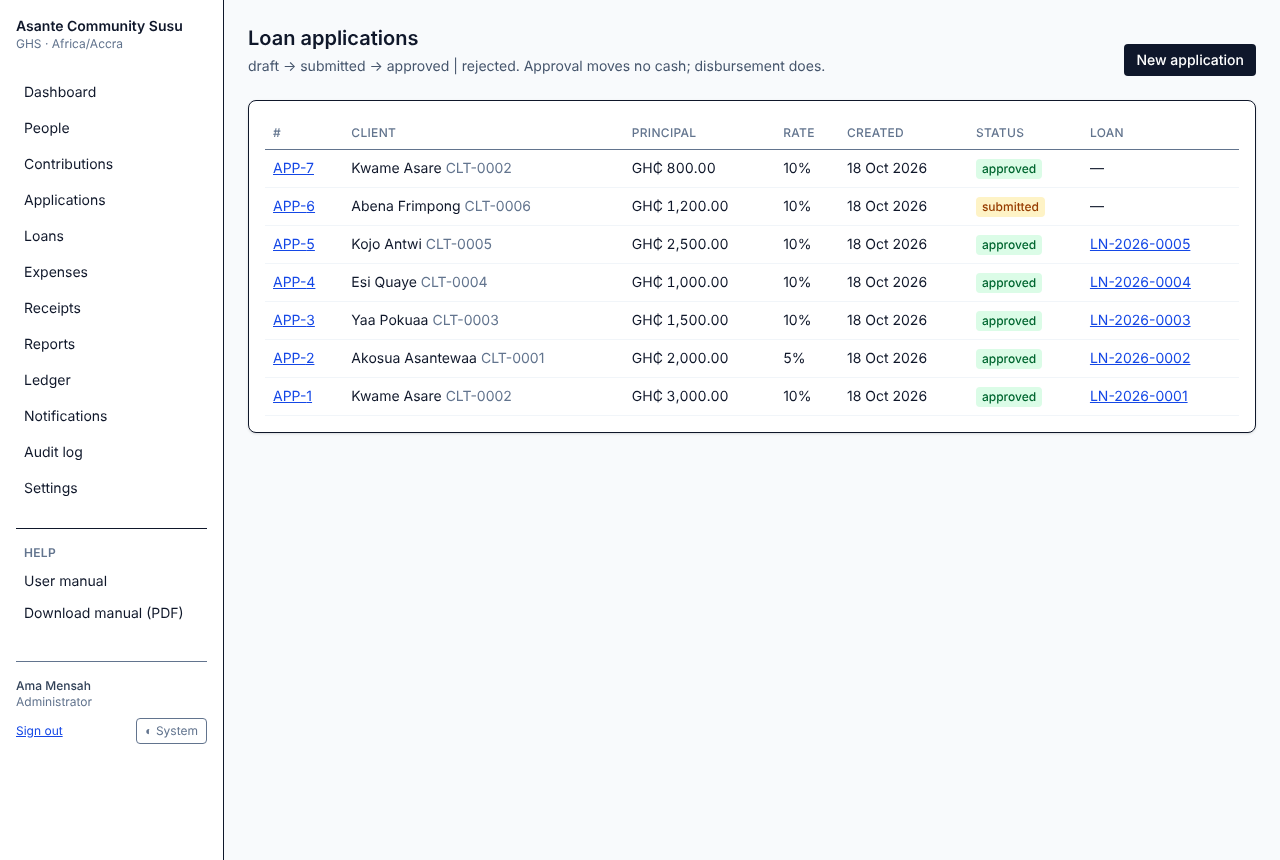
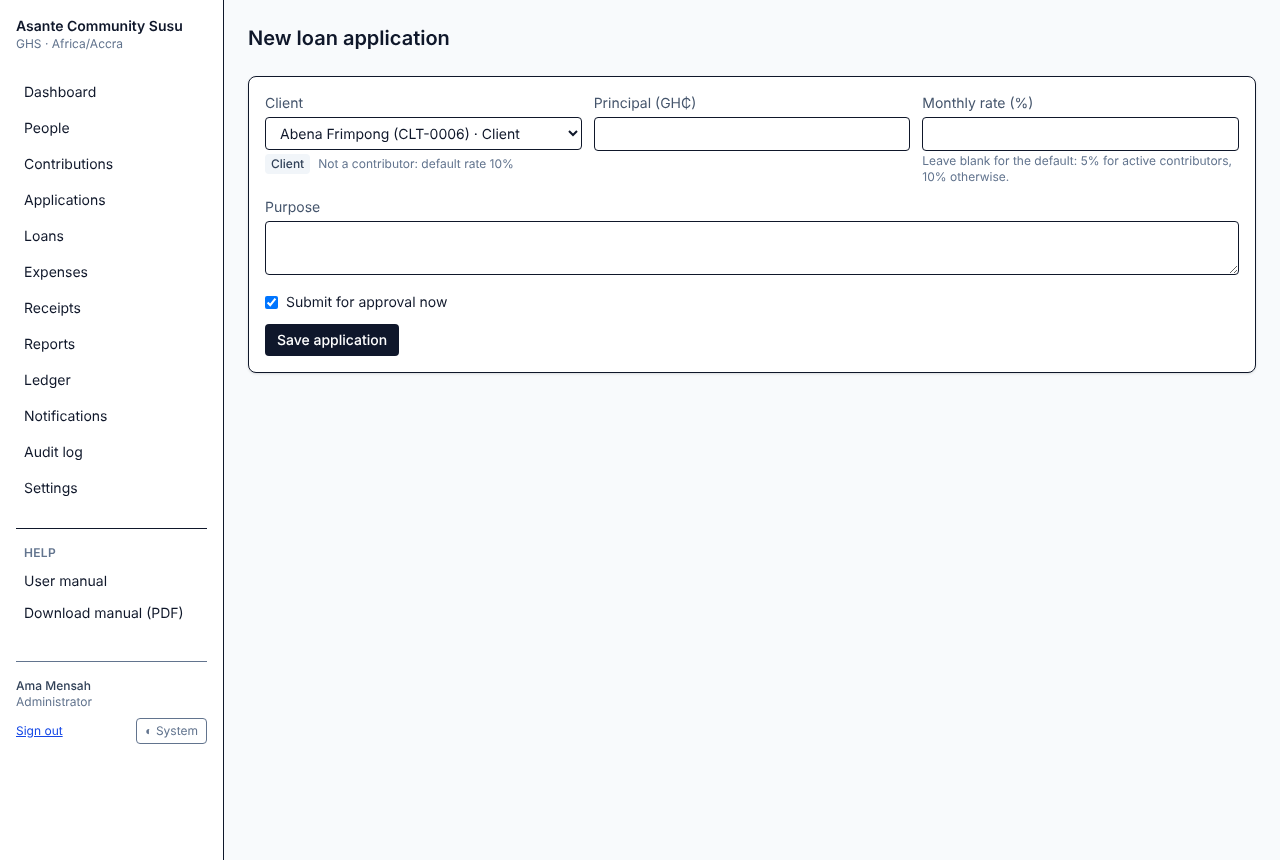
Go to Applications and select New application, or select New loan application on the client's page.
Choose the client. The list shows which clients are also active contributors.
Enter the principal (the amount to lend) in cedis.
Leave the monthly rate blank to use the default: the contributor rate for active contributors, the standard rate for everyone else (see Business rules). Or type a different rate.
Add the purpose if you like.
Keep Submit for approval now ticked to send it straight to a Manager, or untick it to save a draft and submit it later.
Select Save application.
A new application
The client must have a client profile first. If they are not in the list, add them under People.
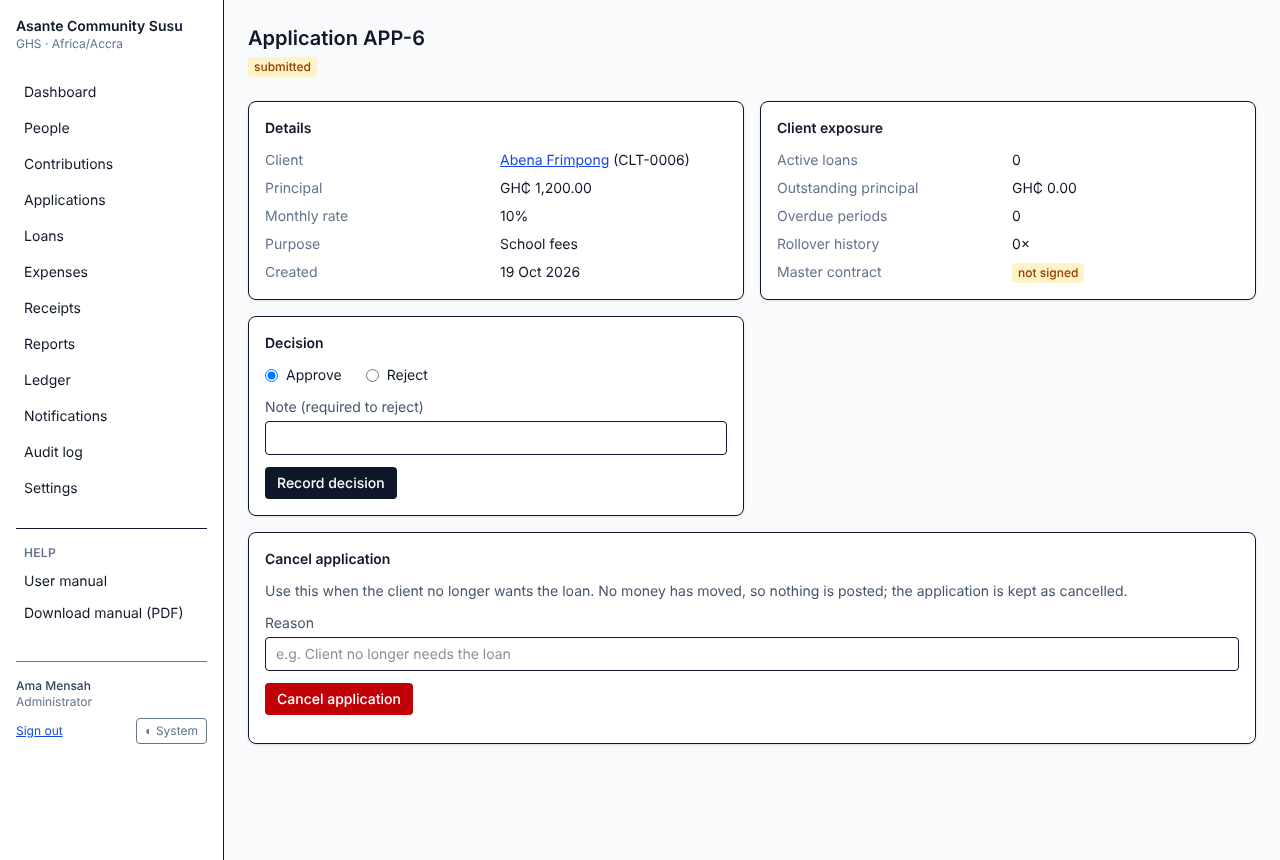
Managers and Administrators open a submitted application from Applications.
Read the Client exposure card: the client's active loans, outstanding principal, overdue months, rollover history and whether their master contract is signed.
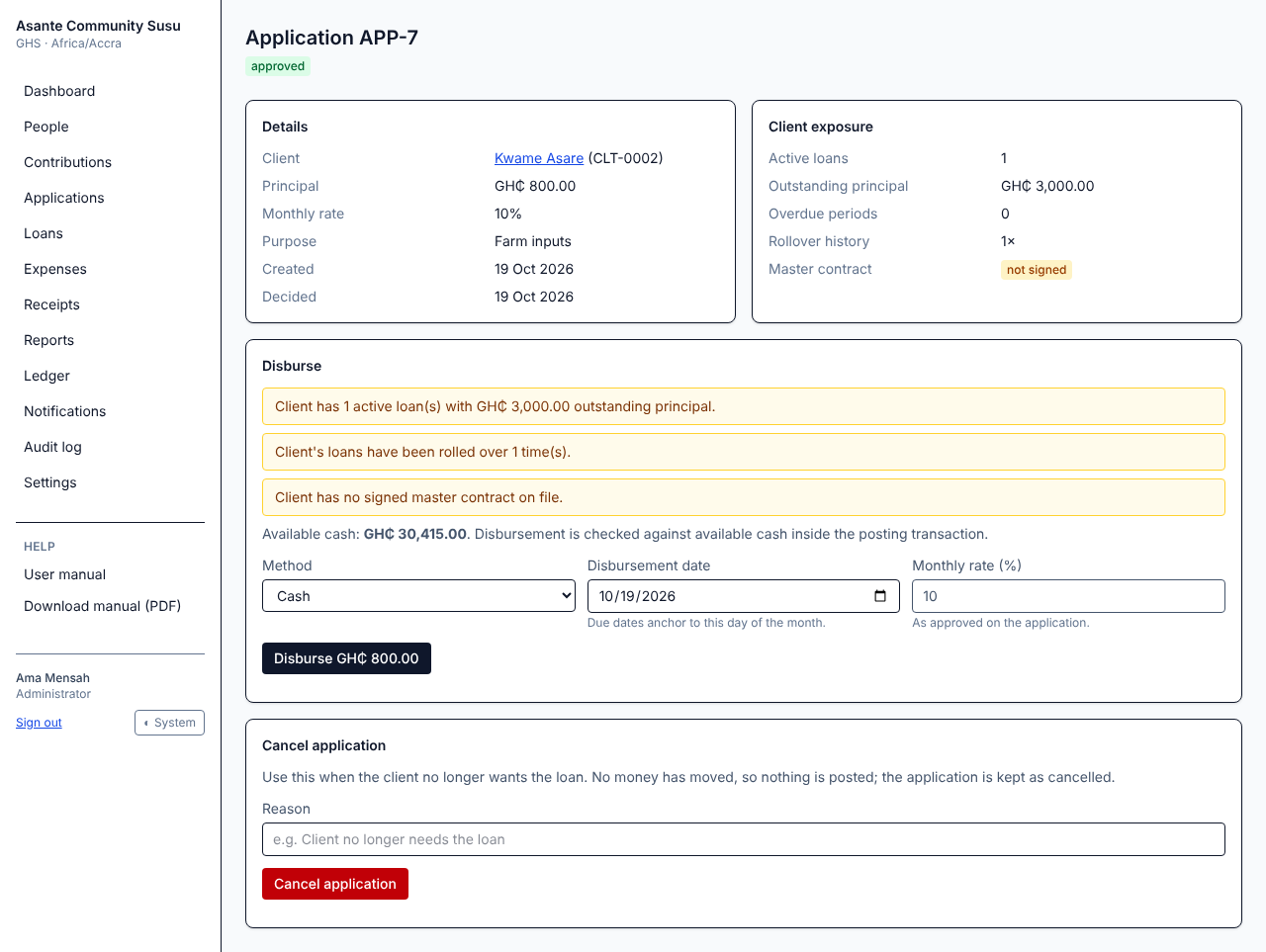
Once approved, the application shows a Disburse card to Managers and Administrators.
Disbursing an approved application
Read any warnings. They tell you, for example, that the client already has loans, has overdue months, or has not signed the master contract. Warnings do not stop you; they are there to help you decide.
Check the available cash. A loan can never be larger than the cash in the pool.
Choose the method you paid the client by.
Check the disbursement date. Due dates are set from this day of the month: a loan disbursed on the 31st is due on the last day of shorter months, then on the 31st again when the month has one.
The monthly rate is the approved rate and cannot be changed here.
Select Disburse and confirm.
The loan gets a number such as LN-2026-0001 and opens on its first month. The client is sent a disbursement message with the loan schedule attached, and a master contract is generated if the client does not have one yet. To have it signed before you lend, generate and send it from the client's page first (see Master contracts).
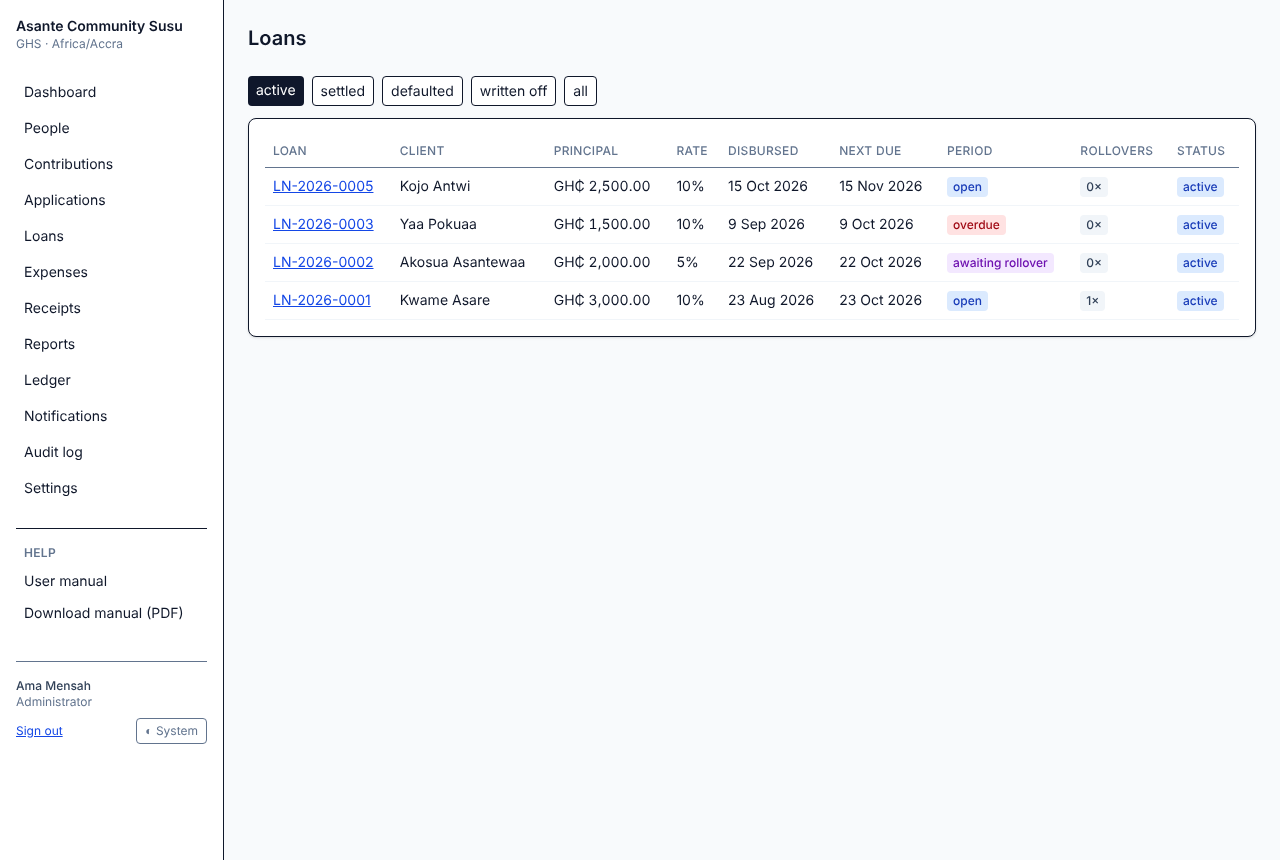
Loans lists every loan. Use the buttons above the list to show active, settled, defaulted, written off or all loans.
The loans list
The list shows each loan's principal, rate, disbursement date, next due date, the status of its current month and how many times it has rolled over. A highlighted rollover count means the loan has rolled over more times than your highlight threshold.
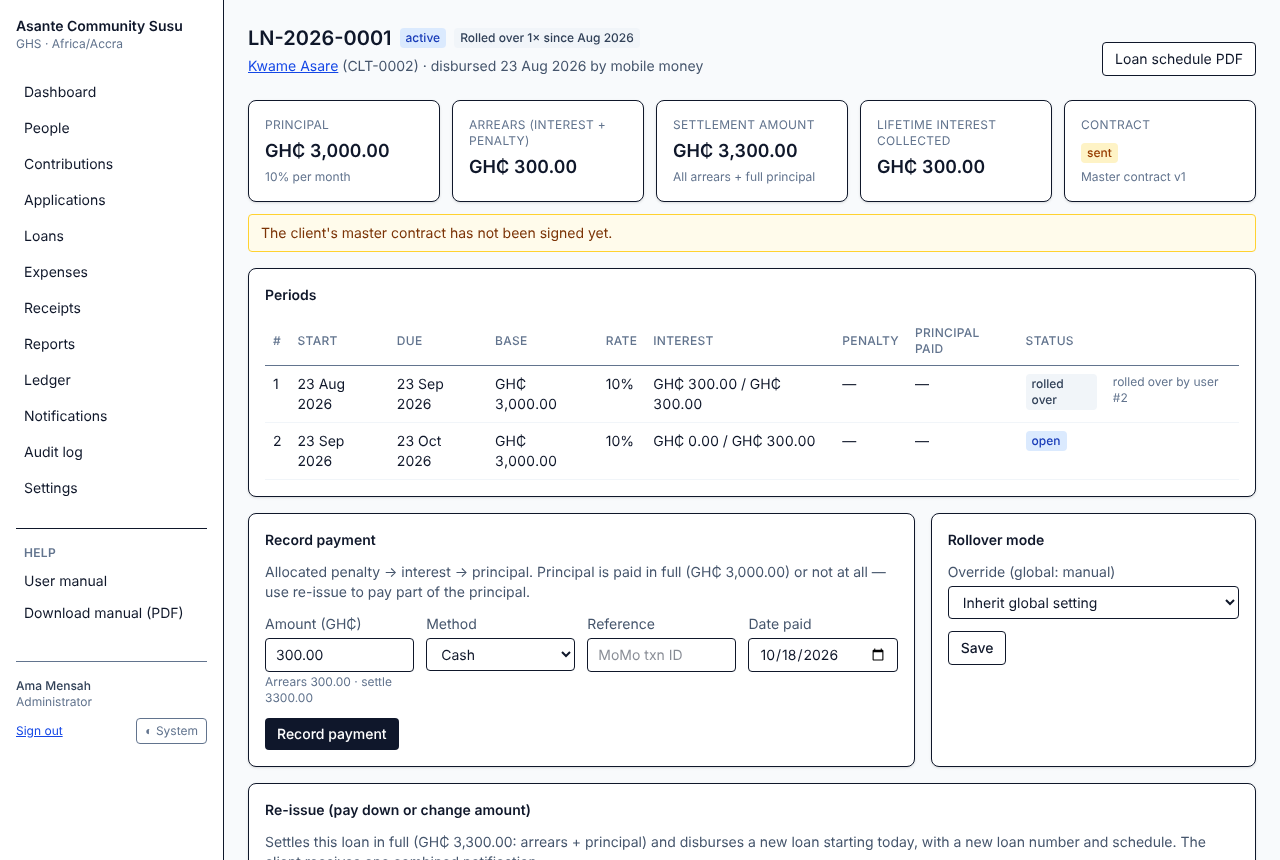
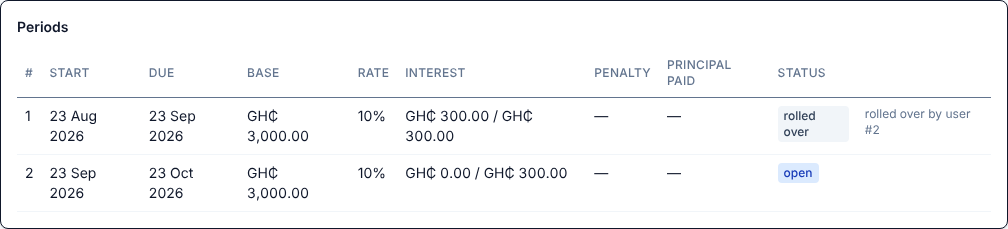
A loan is made of monthly periods. Each period keeps its own principal and rate, so changing your settings never changes past months.
A loan's periods
Period status
Meaning
open
The current month; interest not yet fully paid
awaiting_rollover
Interest paid; waiting for a Manager to confirm a rollover or ask for settlement
rolled_over
Closed by a rollover; the next period continues the loan
overdue
The due date passed without full payment
settled
Interest and principal paid; the loan is closed
closed
Closed because the loan was written off
A review label marks a month where only part of the interest has been paid. A settlement required label means a Manager has asked for the principal to be repaid on the due date.
Loan officers, Managers and Administrators record what a client pays.
Recording a payment
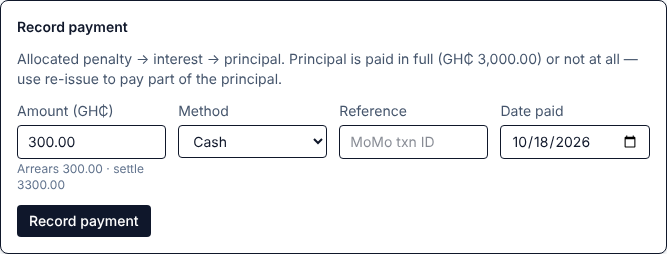
Open the loan and find Record payment.
Enter the amount. It is filled in with the arrears; the hint below shows the arrears and the settlement amount.
Choose the method and enter the reference (for example the MoMo transaction ID).
Check the date paid and select Record payment.
Recording a loan payment
The payment is applied in this order: penalty first, then interest, then principal. The principal is repaid in full or not at all: any money left over after penalty and interest is applied to the principal only if it covers the whole principal. To reduce the principal by part, use Re-issue.
A receipt is issued and sent to the client. It shows how the payment was split. The payment appears under Payments at the bottom of the loan page.
Note: A part payment of interest leaves the month open (or overdue) and flags it for review on the dashboard. It never causes a rollover.
When a client has paid the full interest (and any penalty) for a month but not the principal, the loan can roll over: a new month opens at the same rate and principal, and the client is notified.
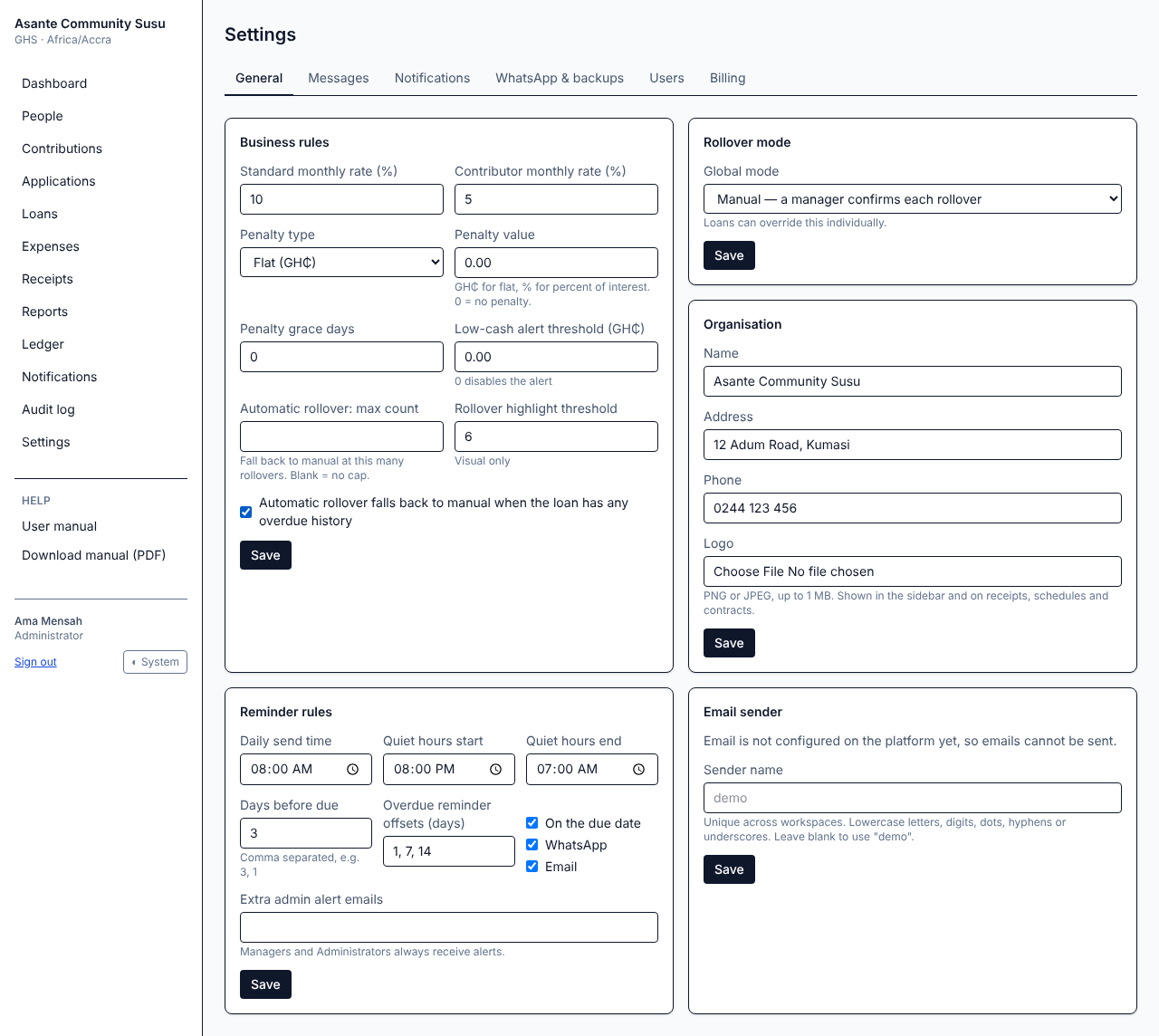
How rollovers happen depends on the workspace's rollover mode, which an Administrator sets in Settings:
Manual (the default): the month waits as awaiting_rollover and appears in the dashboard's Rollovers to confirm list.
Automatic (Premium): the rollover happens as soon as the interest is paid, unless the safety rules send it to the manual list (for example, the loan has been overdue before, or it has reached the maximum number of automatic rollovers).
In manual mode, a Manager opens the loan and decides:
Rollover decision
Confirm rollover opens the next month at the same rate and principal.
Require settlement keeps the principal due on the original due date. If it is not paid by then, the month becomes overdue. You can add a reason.
A month waiting for a decision is not marked overdue when its due date passes (the interest was paid), but Managers are alerted that a decision is pending.
The Rollover mode card on the loan page lets a Manager set one loan to manual or automatic (for a trusted borrower, say), or inherit the workspace setting.
If your workspace charges penalties (see Business rules), a penalty is added once to each missed month after the grace days. The default penalty is zero.
To waive a penalty, a Manager opens the loan, chooses the month under Waive penalty, gives a reason (required, and recorded in the audit log) and selects Waive.
A month becomes overdue when its due date passes without the interest (or a required settlement) being paid. Managers are alerted, the loan appears on the dashboard's Overdue list, and the client receives overdue reminders if they are switched on. The original due date and terms stay as they were.
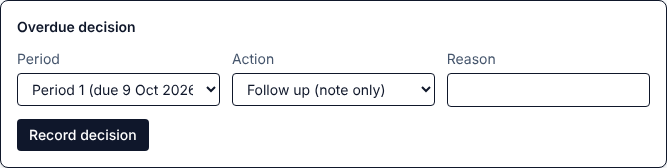
A Manager records what the pool decided to do under Overdue decision:
Overdue decision
Action
What happens
Follow up (note only)
Records the note; nothing else changes
Open next period
Charges the next month while the overdue amounts stay due
Mark defaulted
The loan becomes defaulted. Payments are still accepted
Write off
The loan becomes written off; the unpaid principal is written off in the books
A reason is required. Every decision is listed under Overdue decisions on the loan page.
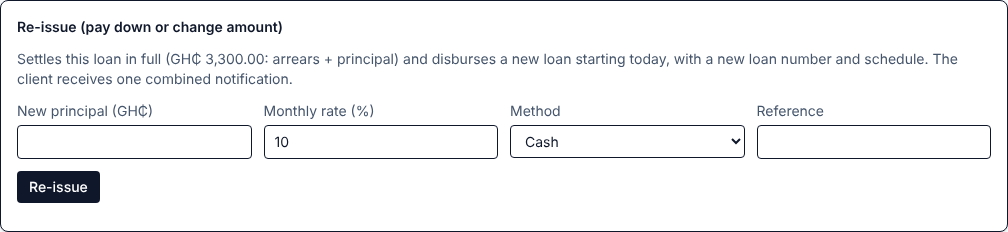
When a client wants to pay back part of the principal, or borrow a different amount, a Manager uses Re-issue. In one step it:
Settles the old loan in full (arrears plus principal).
Disburses a new loan for the new principal, starting today, with a new loan number and loan schedule. The rate is copied from the old loan and can be changed.
Re-issuing a loan
Enter the new principal, check the rate, the method and the reference, select Re-issue and confirm. The client receives one combined message with the receipt. The old and new loans link to each other (re-issued as / re-issued from), and the collections report counts only the net cash that changed hands.
Select Loan schedule PDF at the top of the loan page to open the loan's schedule: the principal, rate, due date and rollover terms, referring to the client's master contract. It is sent to the client automatically at disbursement.
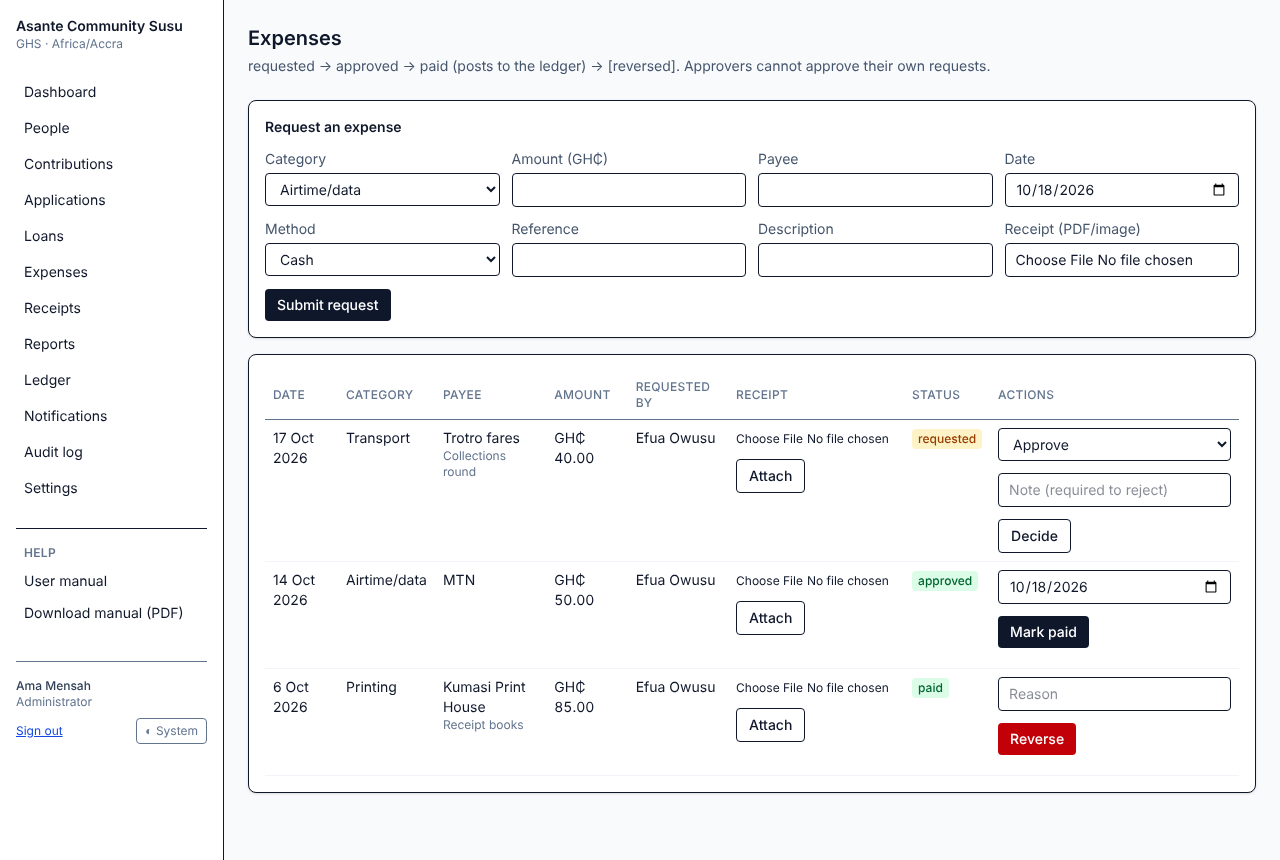
A Manager or Administrator who did not request the expense chooses Approve or Reject in the Actions column and selects Decide. A note is required to reject. You will not see the Decide button on your own requests.
When the money has been paid out, a Manager or Administrator selects Mark paid on the approved expense, checks the date and confirms. The pool must have enough available cash.
If a paid expense was recorded wrongly, a Manager or Administrator enters a reason and selects Reverse. The money is put back in the books with a correcting entry; the original stays visible with the status reversed. Record the correct expense again if needed.
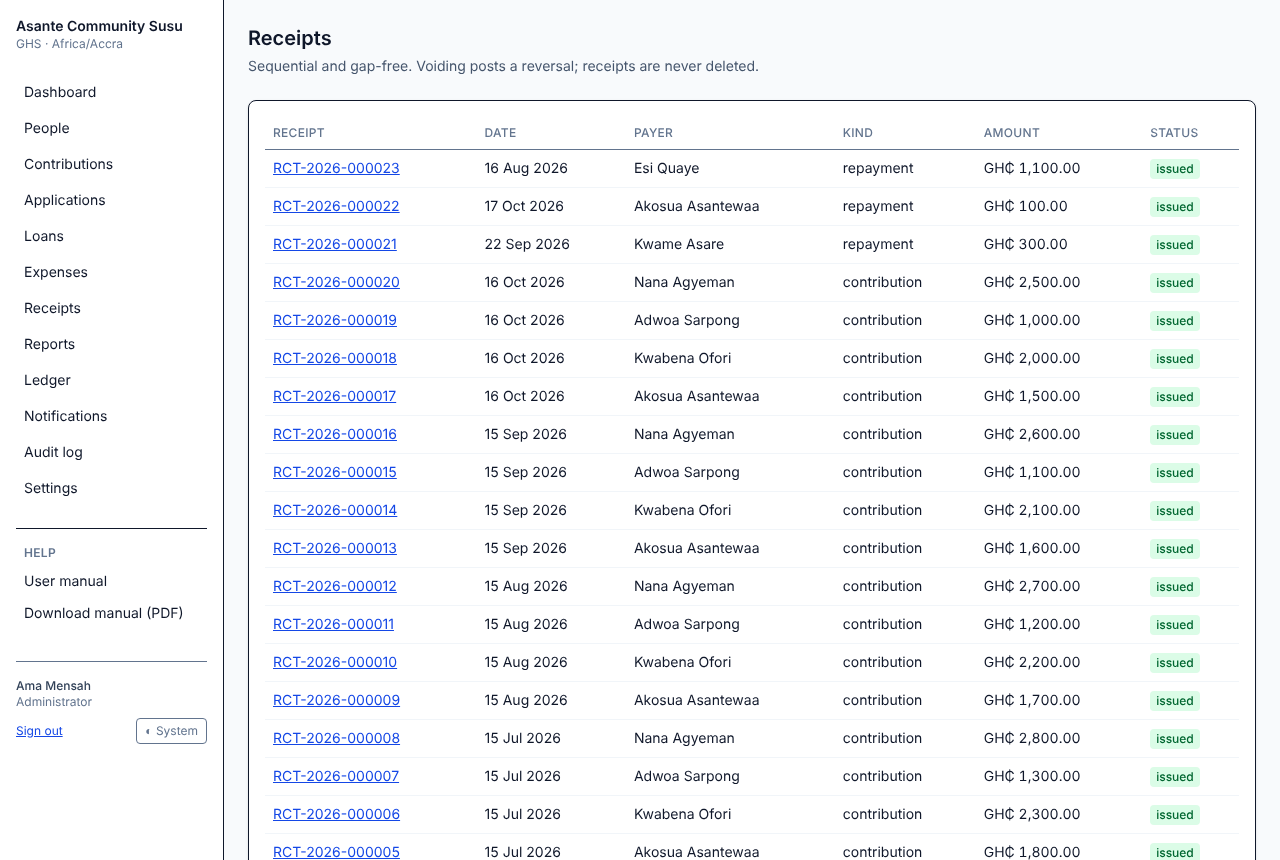
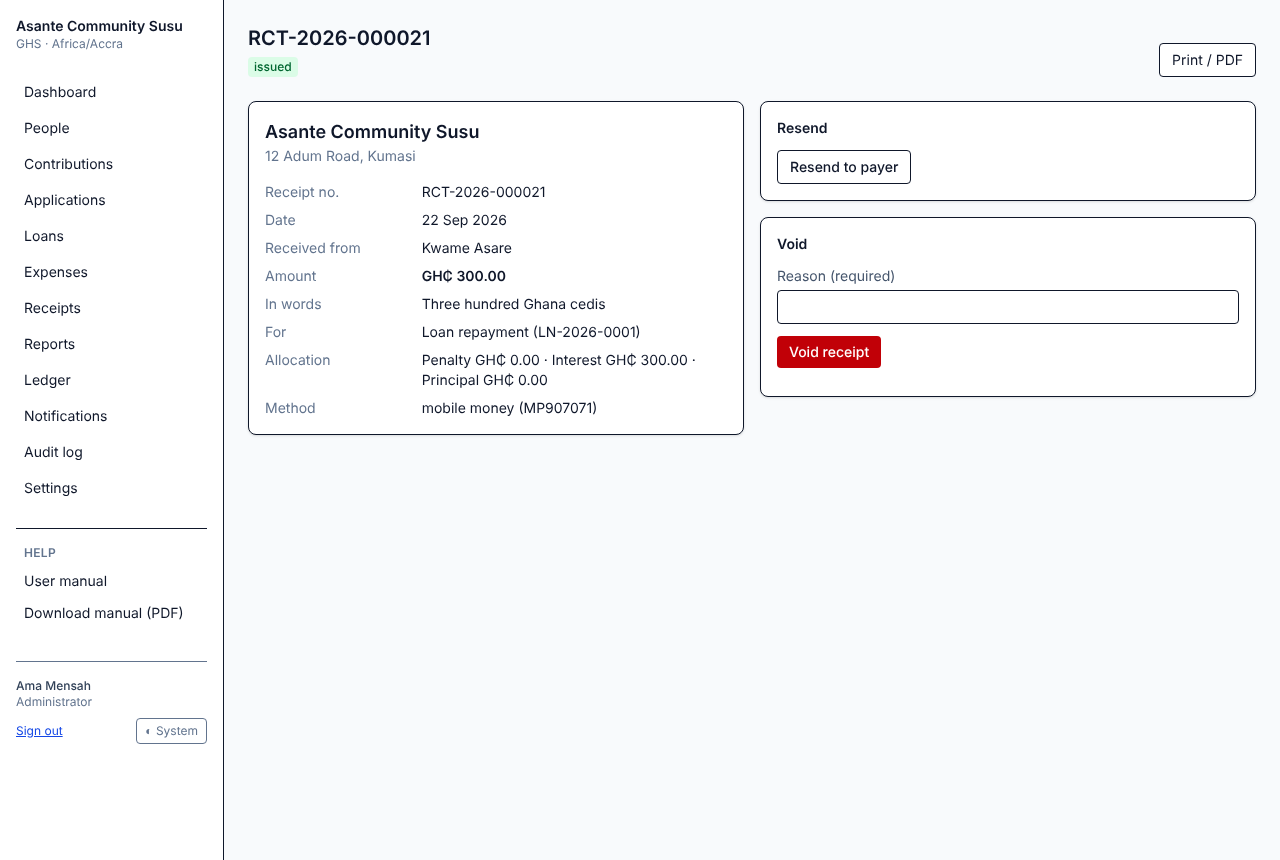
Every contribution and every loan payment issues a receipt. Receipt numbers run in order without gaps, for example RCT-2026-000123, and receipts are never deleted.
The receipt shows the amount in figures and in words, who paid, what it was for and, for loan payments, how it was split between penalty, interest and principal.
Print / PDF opens the receipt as a PDF with your logo, to print or save.
Resend to payer sends it again by WhatsApp or email. This is refused if receipts are switched off in Notifications.
If a contribution or payment was recorded by mistake, a Manager or Administrator voids its receipt:
Open the receipt.
Under Void, enter the reason (required).
Select Void receipt and confirm.
Voiding reverses the contribution or payment in the books and marks the receipt voided with the reason. It stays in the list so the numbering has no gaps. Record the transaction again correctly if needed.
Note: A loan payment can be voided only if it is the latest payment on the loan and the loan has not rolled over since. Payments made as part of a re-issue cannot be voided.
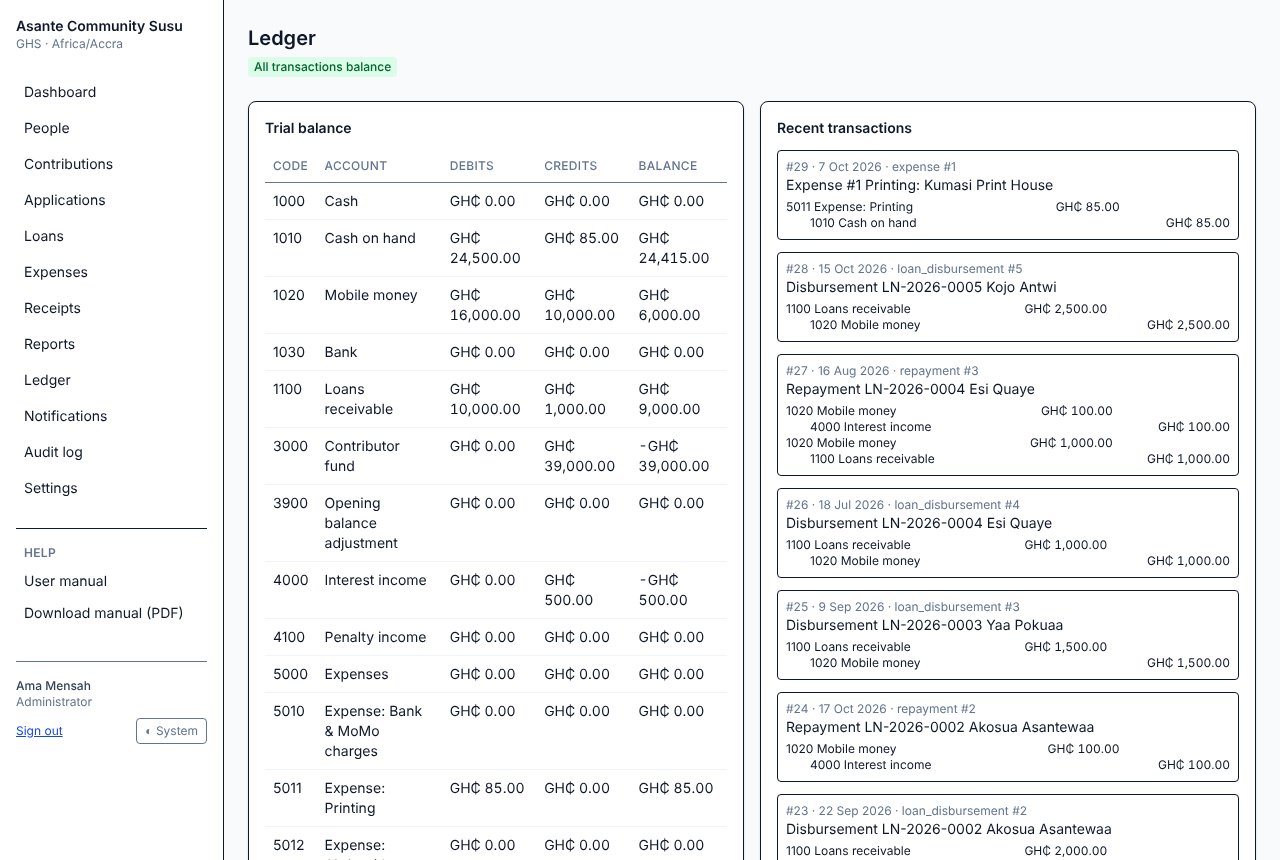
The Ledger shows the double-entry books behind every figure in the workspace.
The ledger
The label at the top confirms that all transactions balance. If it ever shows unbalanced transactions, tell your Administrator.
Trial balance lists each account (Cash, Loans Receivable, Interest Income, Contributor Fund, the expense accounts and so on) with its debits, credits and balance.
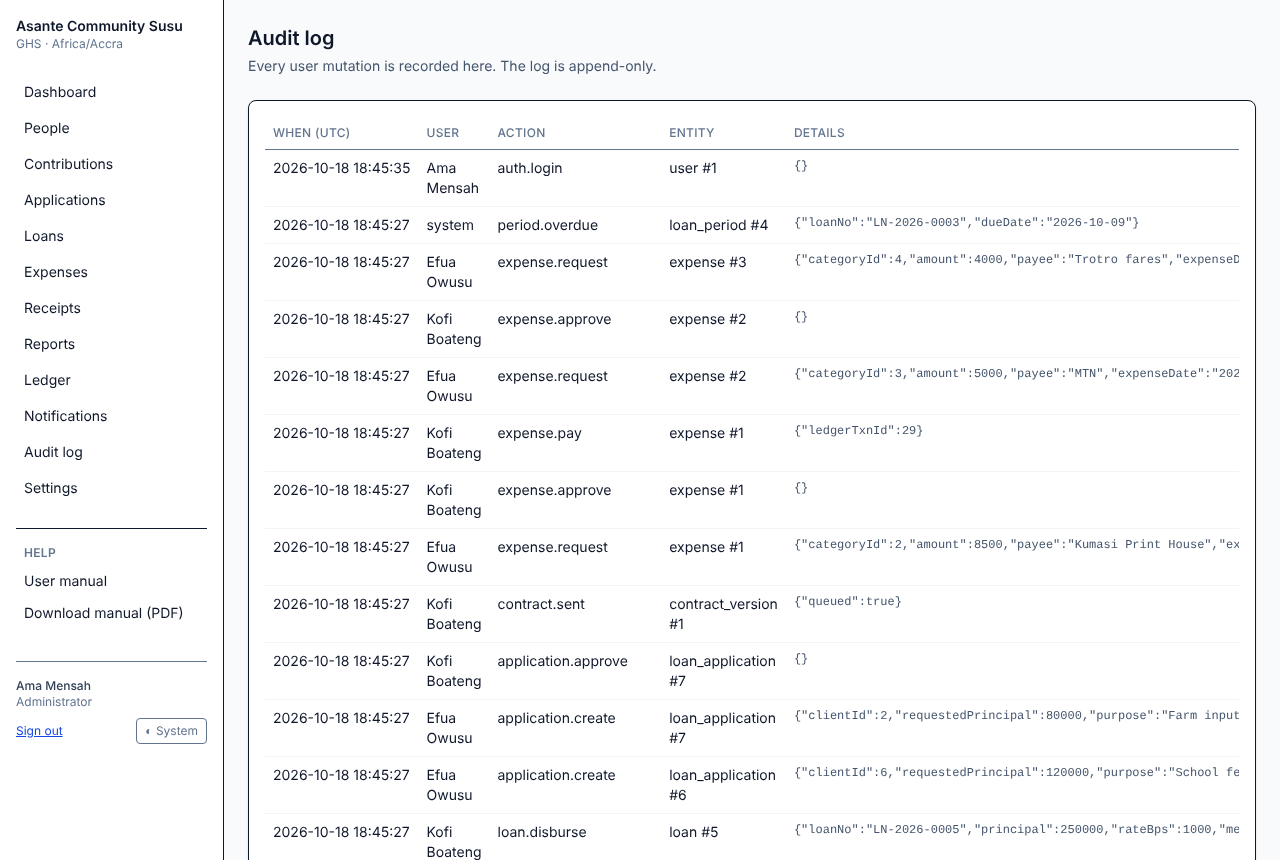
Recent transactions shows each posting and its entries. Corrections appear as separate reversal transactions; nothing is ever edited or deleted.
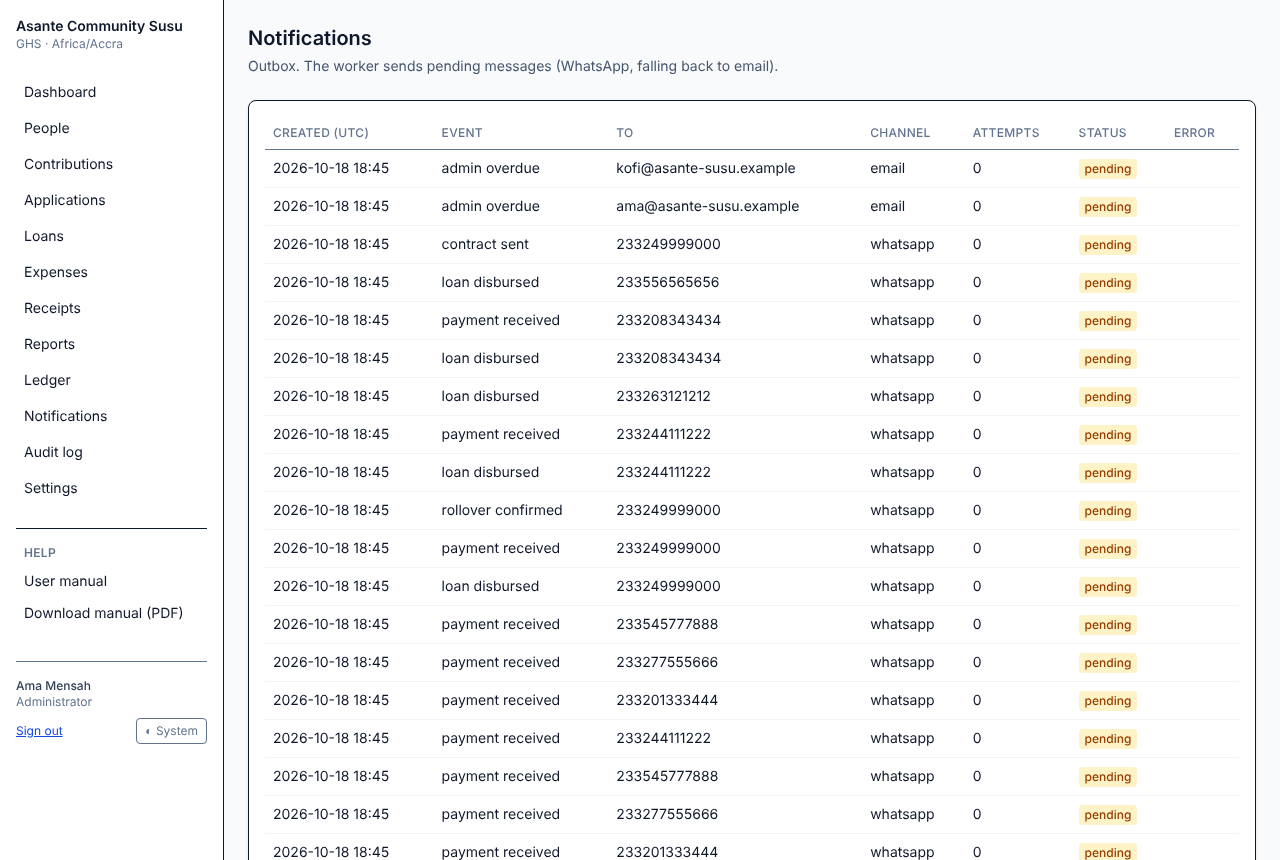
Notifications lists every message the workspace has queued for clients and staff: reminders, receipts, disbursement notices, alerts and so on, with the channel (WhatsApp or email), the number of attempts, the status and any error.
The notifications outbox
Messages are sent in the background a few seconds apart. If WhatsApp is not connected, messages go by email instead. During quiet hours (see Reminder rules) messages wait until the morning.
The organisation's name, address, phone and logo (PNG or JPEG, up to 1 MB) appear in the menu, on the sign-in page, and on receipts, schedules, contracts and emails. Tick Remove the current logo to take the logo off.
Administrators choose the sender name of the workspace's emails, for example asante-susu, which becomes the part before the @ in the From address. It must be unique across all workspaces. Leave it blank to use the workspace's own address name. Emails always show your organisation's name as the sender.
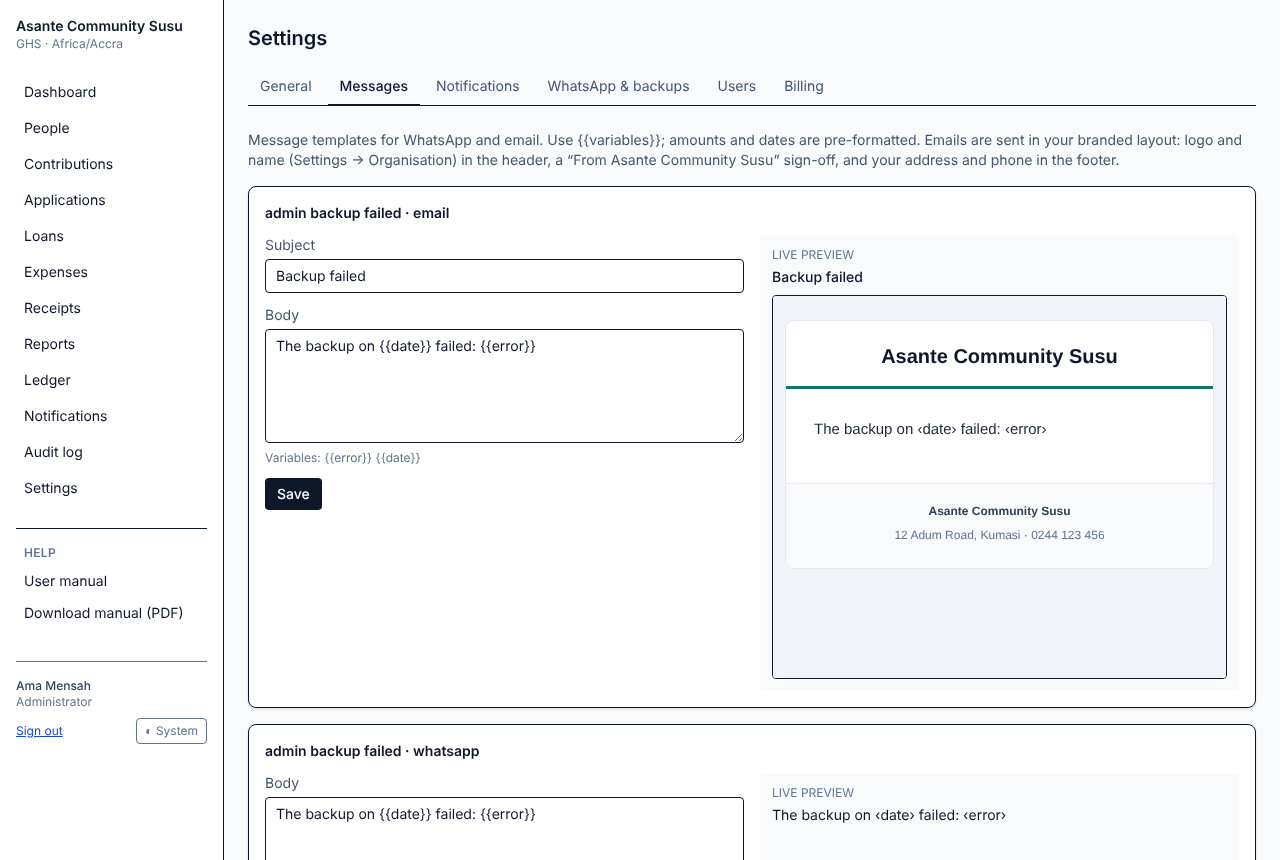
Messages holds the text of every WhatsApp and email message the workspace sends. Each template shows the {{variables}} you can use, such as {{name}}, {{loan_no}} or {{due_date}}, and a live preview of how it will look. Edit the text and select Save.
Settings → Messages
Emails are sent in your branded layout: your logo and name at the top, a "From" sign-off with your organisation's name, and your address and phone at the bottom.
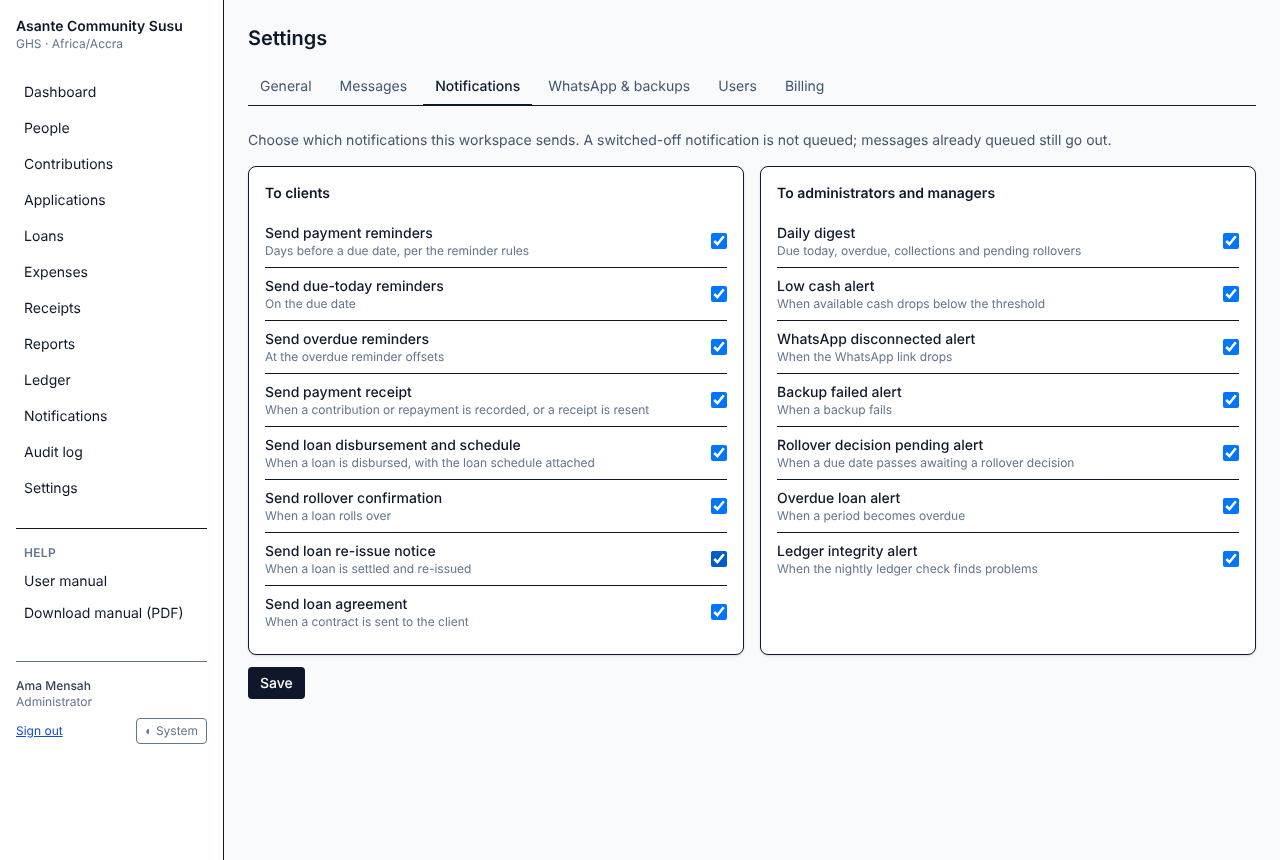
Administrators choose which messages the workspace sends. Untick a message and select Save to stop it. Messages already queued still go out.
Settings → Notifications
To clients: payment reminders, due-today and overdue reminders, receipts, disbursement notices with the loan schedule, rollover confirmations, re-issue notices and loan agreements.
To administrators and managers: the daily digest and alerts for low cash, WhatsApp disconnection, failed backups, pending rollover decisions, overdue loans and ledger integrity problems.
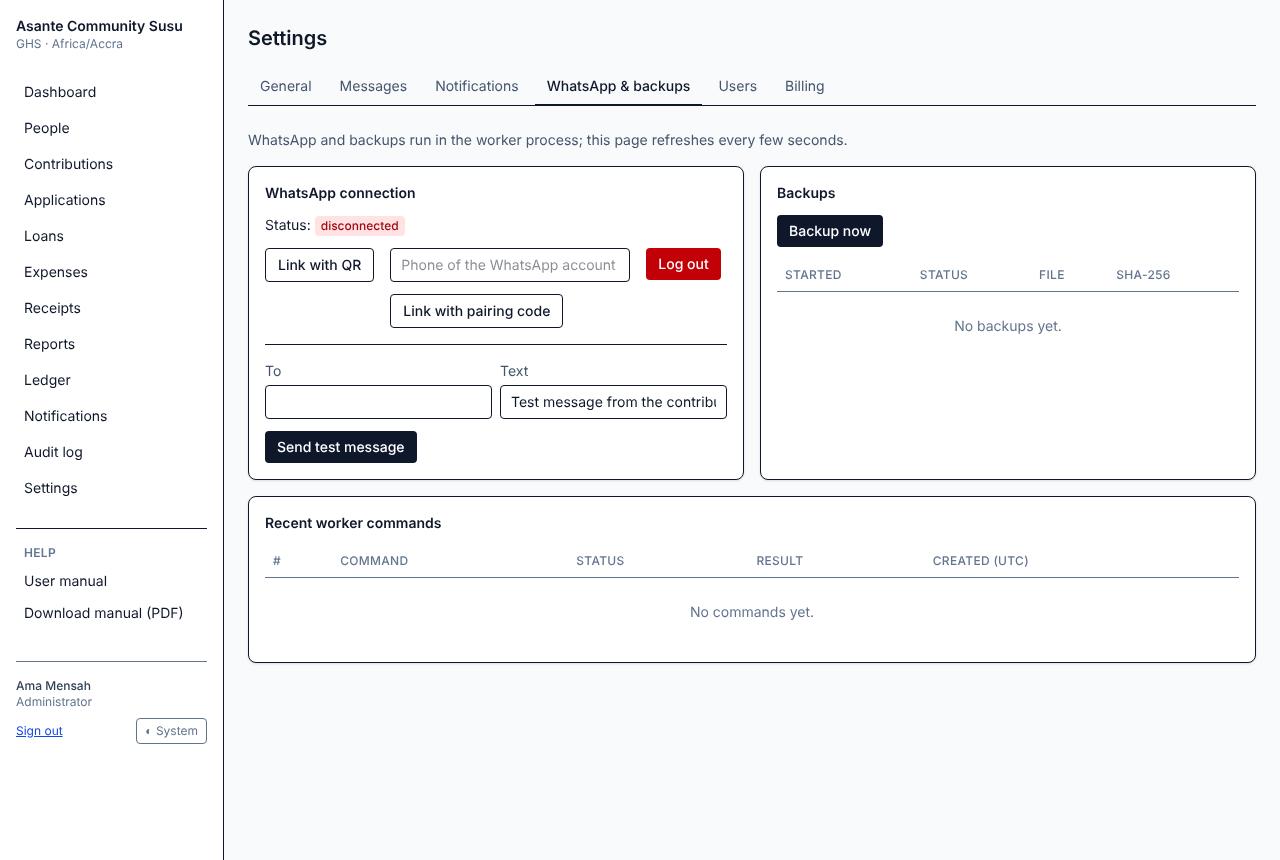
Administrators connect the workspace's WhatsApp number here so clients receive messages on WhatsApp. The page refreshes by itself every few seconds.
Settings → WhatsApp & backups
To link WhatsApp:
Select Link with QR. After a few seconds a QR code appears.
On the phone with the pool's WhatsApp account, open WhatsApp → Linked devices → Link a device and scan the code.
Or select Link with pairing code, enter that phone's number and type the code shown into WhatsApp on the phone.
When the status shows connected, use Send test message to check it works.
The QR codes and the pairing code expire after about three minutes. If the status goes back to disconnected before you linked, select Link with QR or Link with pairing code again.
Log out unlinks the number. If WhatsApp disconnects, Administrators are alerted and messages go by email until it is linked again.
Tip: Use a dedicated phone number for the pool and keep that phone charged and online.
Under Backups, Backup now starts a backup straight away, and the list shows recent backups and whether they succeeded. Backups also run automatically every day.
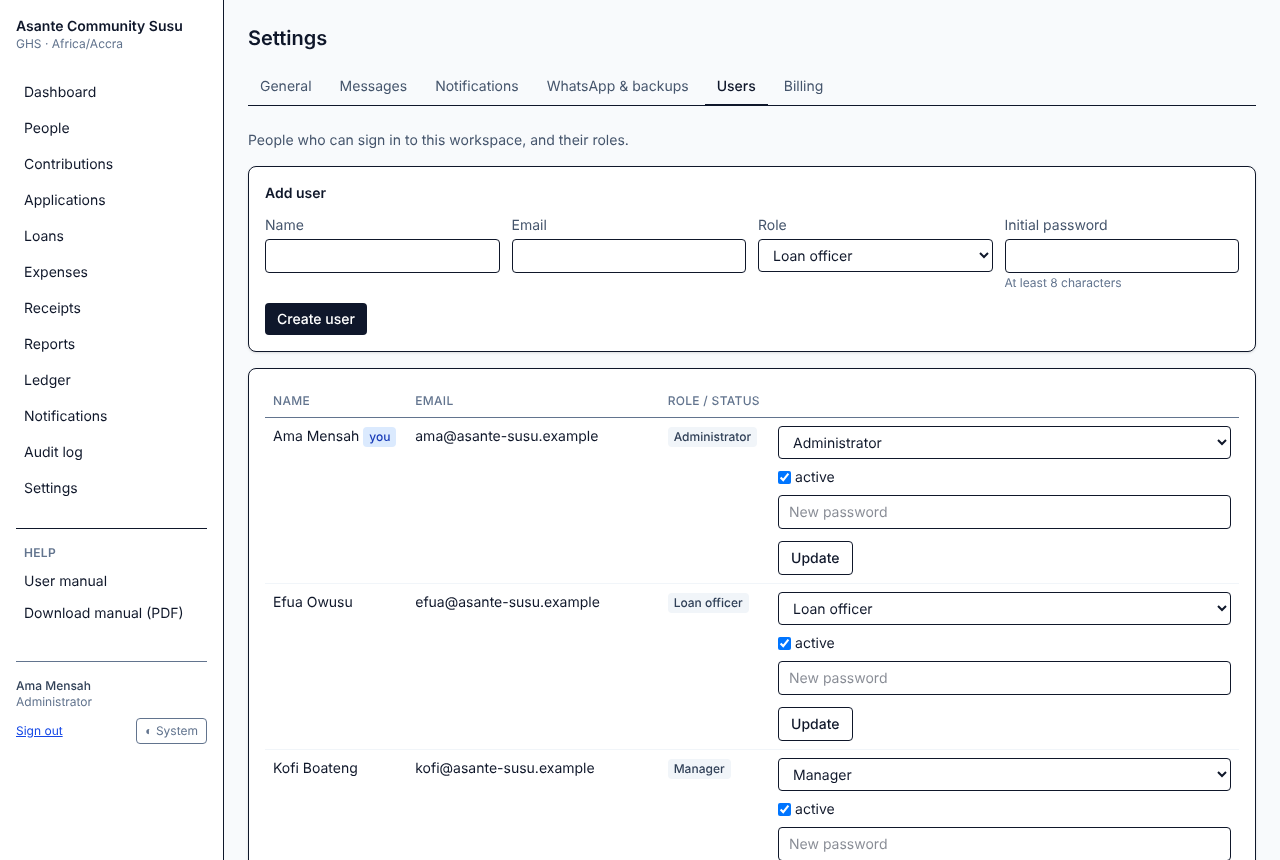
Administrators add and manage the people who can sign in.
Settings → Users
To add a user, enter their name, email, role and an initial password (at least 8 characters), and select Create user. Give them the workspace address, their email and the password.
To change a user, edit their row and select Update:
Change the role.
Untick active to stop them signing in (their history stays).
Every new workspace starts with a free trial of all features. Administrators see a banner with the days left, and are reminded by email 7, 3 and 1 days before it ends.
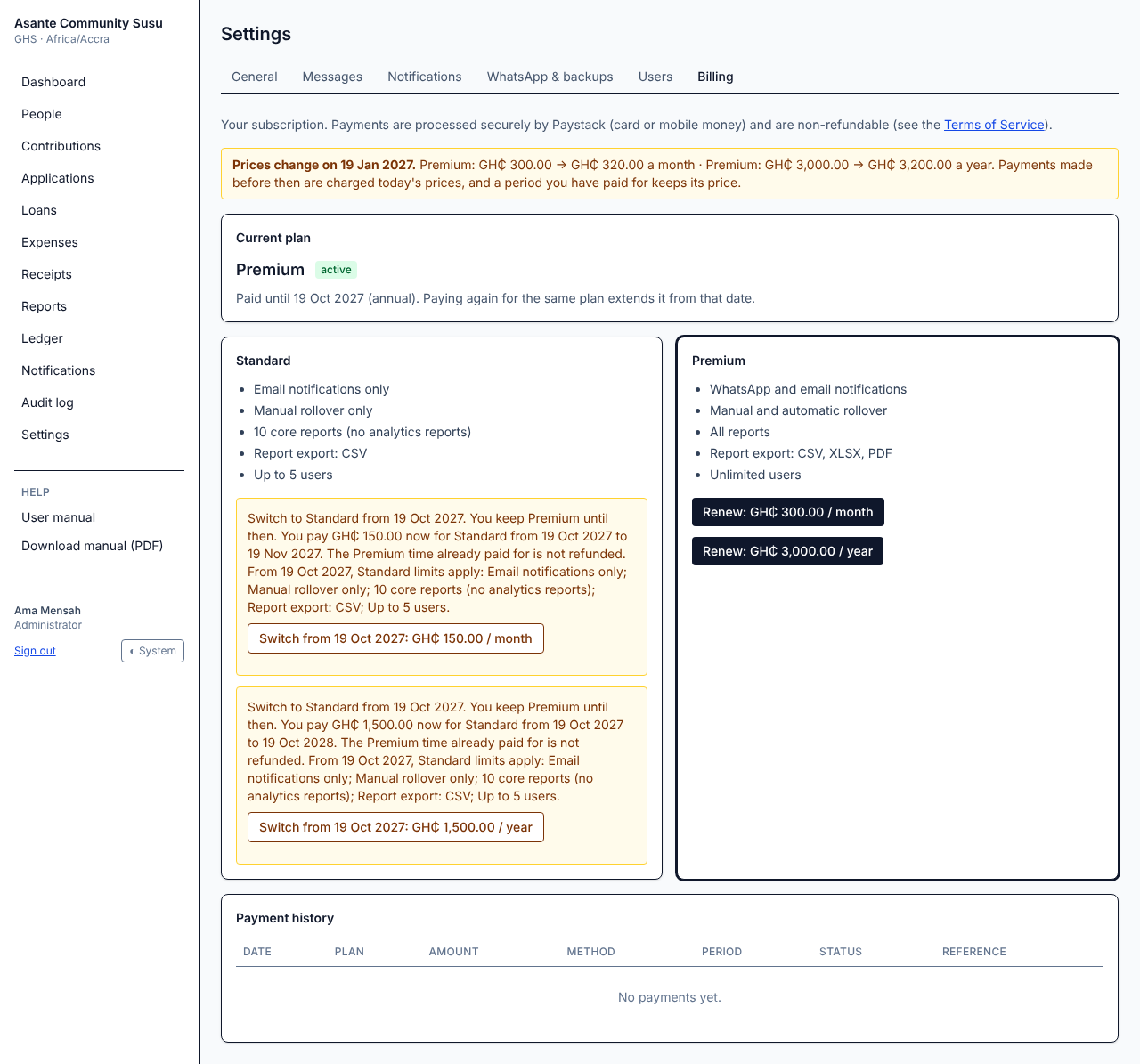
Once your workspace has paid for a subscription, a price change is announced to it at least 3 months before it takes effect (during the free trial, prices can change without notice; you always pay the price shown when you pay):
Your Administrators get an email when the change is scheduled, then reminders twice in each month before it and one the day before.
While a change is coming, Settings → Billing shows a notice with the date and the old and new prices.
Payments made before the date are charged today's prices; payments from that date on are charged the new ones. A period you have already paid for never changes.
If a scheduled change is cancelled, you get an email saying so.
Payment history lists every payment with its period and reference.
When a trial or subscription ends, the workspace becomes read-only: everyone can still sign in, view, search and download reports and receipts, but nothing can be changed and no messages are sent. Nothing is deleted. A red banner on every page says so, and Administrators see a Subscribe now link. Paying restores full access straight away.
A platform administrator can also set a workspace to read-only; the banner then says so without mentioning the subscription. Contact your platform administrator in that case.
A client paid part of the principal. How do I record it?
The principal is repaid in full or not at all. Use Re-issue to settle the loan and open a new one for the smaller amount.
A client repaid early. Is the interest reduced?
No. The full month's interest is always charged, whenever in the month the loan is repaid.
I recorded a payment or contribution wrongly.
Ask a Manager or Administrator to void the receipt, then record it again correctly.
Why can't I see a button or a menu item?
Your role does not allow that task. See Roles and what they can do, and ask an Administrator if you need a different role.
The disbursement says there is not enough cash.
A loan cannot be larger than the available cash. Record outstanding contributions or repayments first, or lend a smaller amount.
Clients are not receiving WhatsApp messages.
Check the WhatsApp card on the dashboard. If it is not connected, an Administrator links it again in WhatsApp and backups. Meanwhile messages go by email to clients who have an email address. Also check Notifications for errors, and that the message is switched on in Settings → Notifications.
Changes are disabled and there is a banner about read-only.
The subscription has ended or the workspace was set to read-only. See Read-only workspaces.
I forgot my password.
Ask an Administrator of your workspace to set a new one under Settings → Users.
For questions about your workspace, its users or its data, contact your workspace's Administrator. For billing or access problems, reply to your welcome email to reach the platform administrators.